
Organizations may easily incorporate voice and chat simulation training into candidate screening and employee hiring, onboarding, and upskilling, directly within their learning management system (LMS), using LMS content standards. Please also refer to the FAQ article on Integrations, LMS, and Deep Links.
Call Simulator's support for LMS integrations helps organizations in numerous ways, including:
- Learning and Development (L&D) and Human Resources (HR) agility
- Performance Management
- Flexible, low-cost LMS integration options
- Ease of use for Learners, Builders, and Trainers
- Overall employee engagement and retention
Call Simulator Users with applicable roles may export Scenarios as LMS Packages. To export a Scenario as an LMS Package, navigate to Scenario Studio and click on the applicable Scenario which you wish to export as an LMS Package. Then, click on Export LMS Package, located at the bottom of your Scenario:

Once you click on Export LMS Package, you will be presented with two options:
- SCORM 2004 3rd Edition - This SCORM standard is broadly supported across LMS providers, but has technical limitations due to being an older standard. Notably, SCORM measures "duration" as the amount of time the SCORM window is open and not necessarily the specific duration of the Learner's simulation. If your organization wants the LMS to get a simulation score and updated completion information sent from Call Simulator via SCORM, then SCORM requires the LMS-launched training window to remain open until the simulation data is sent by Call Simulator back to the LMS, at which time the Call Simulator SCORM window should automatically close.

- cmi5 (xAPI) - This newer cmi5 standard is based on xAPI and, as a newer standard, is more technically robust. However, cmi5 and xAPI are supported by fewer LMS providers. With cmi5, Call Simulator passes the actual simulation duration back to the LMS, unrelated to the window open-time. The Learner is not required to leave the LMS-launched training window open after the simulation is complete. Whether the window is left open or closed, the completion and score data are sent back to the LMS asynchronously as soon as they are available.
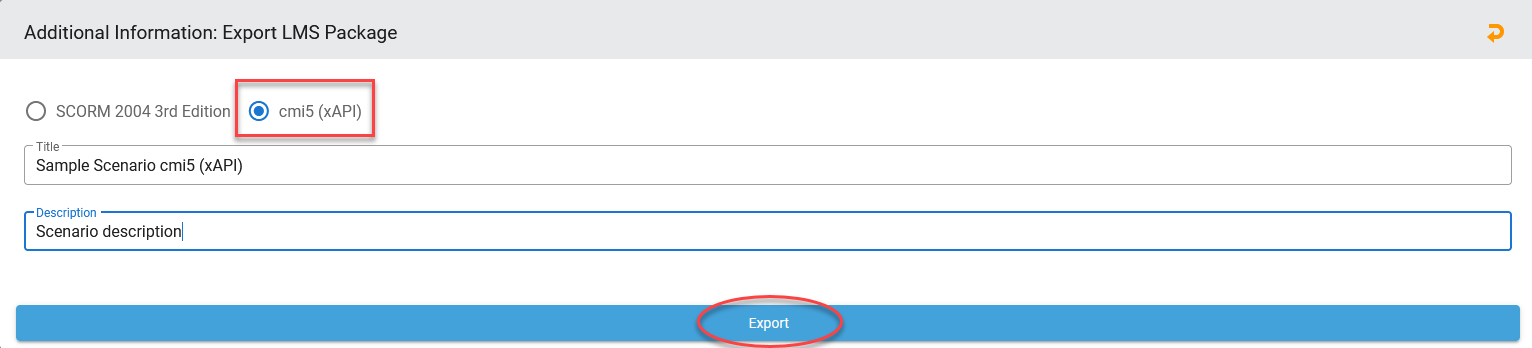
Select your preference and click on Export. Your zipped file will download within your browser window. This zipped file may now be imported/uploaded into your organization's LMS environments.
As always, we at Call Simulator, Inc. appreciate the opportunity to serve your organization in all of its conversation training needs! Should you need assistance, please do not hesitate to reach out to us at Support@CallSimulator.com or via the chat widget located in the bottom corner of this screen.