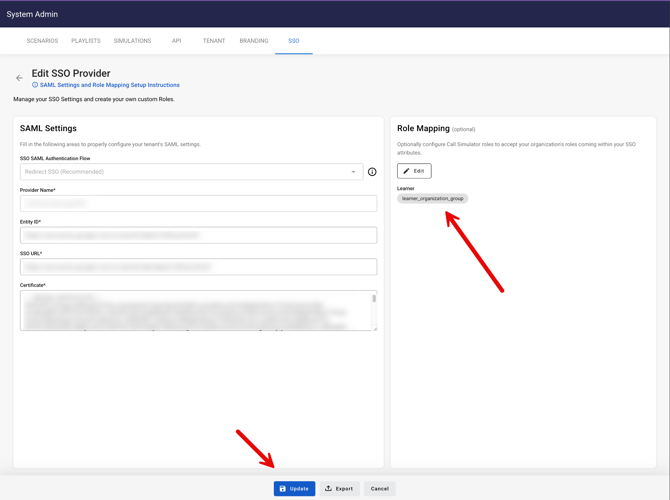
IMPORTANT: Please first review the System Admin, SSO Admin article herein.
Edit SSO Provider SAML Settings
Once your Call Simulator tenant has an SSO Provider established, you may edit the SAML Settings for the SSO Provider as needed.
- Edit SSO Provider
- With the exception of SSO SAML Authentication Flow type (Redirect or Pop-up), it is possible to edit an enabled SSO Provider. When the edit is saved, it is live. Since an SSO Provider must be saved to be testable, this means the new configuration cannot be tested before it is saved.
- As a best practice, a safer option is to create a new SSO Provider with the new configuration and to test the new SSO Provider before enabling it and replacing the old SSO Provider.
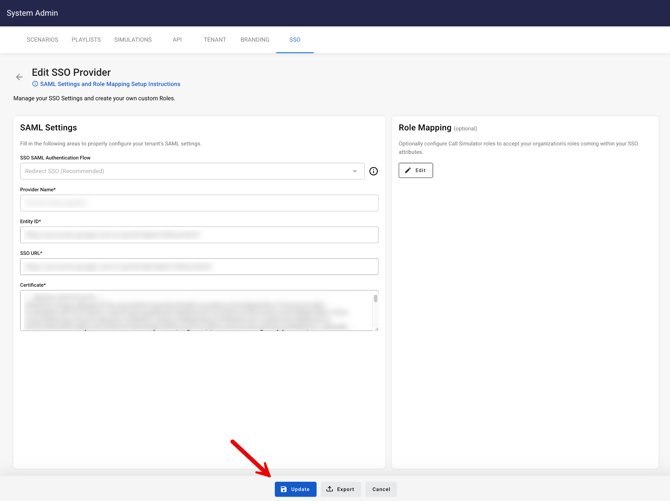
- The edits made in any of the SAML Settings fields will not be saved until you click on the Update button, which becomes active once changes have been made in any of the SAML Settings fields.
Role Mapping
NOTE: It is highly recommended you first review this article before proceeding: System Admin, SSO Admin.Role Mappings are optional and only used if the organization's IdP / IAM is not passing explicit Call Simulator roles in the SAML payload. For explicit Call Simulator roles like "Learner" or "Manager," if those are provided in the SAML payload from the organization's IdP / IAM, then no Role Mapping is required.
- If the organization's IdP / IAM does not provide explicit Call Simulator roles - for example, a Call Simulator Trainer is called a “training_lead” or if the organization has a SAML element (aka claim or assertion) for “active_employees” and they want all “active_employees” to be Call Simulator Learners, then a Role Mapping must be used.
- It is possible to have zero or multiple Role Mappings for any given Call Simulator role.
- If a Role Mapping is configured, but not needed or used during SSO processes, it is disregarded.
- When adding, editing, or deleting Role Mappings, it is a double-save process. This means the user must add the Role Mapping to the role via the appropriate “+” / Add Role Mapping button, then Save in the dialog, and then Update or Save the SSO Provider in order to fully save the Role Mapping. These steps are illustrated in the following screenshots:


NOTE: If you fail to click on the plus sign to add the role mapping prior to clicking on Save, you will see the following message:

Click Cancel to return to the Role Mapping and click on the plus sign and then click on Save as shown below.

Then, click on the Update button on the Edit SSO Provider screen, as shown below: