
SSO Admin, available under System Admin, allows users with the role of Super User to configured and safely test SAML-based SSO for Call Simulator in collaboration with their organization's IT colleagues who manage their organization's IdP (identity provider) and/or IAM (identity and access management) systems.
Call Simulator supports two forms of SAML-based SSO - Redirect-based SSO (default) and Pop-up-based SSO. Pop-up-based SSO was the original SAML flow for Call Simulator and requires user browser allowance for authentication via pop-up window.
Note for the IT teams who manage their organization’s IdP and/or IAM systems, the primary configuration difference for the two options below is which ACS (Authorization Callback / Assertion Service) URL to use. Redirect-based SSO and Pop-up-based SSO use different URLs, detailed below.
Option 1: Redirect-based SSO (Recommended)
First, create a new app integration within your identity provider:
- General Settings
- Sign-in method: SAML 2.0
- Redirect SSO Authorization Callback / Assertion Service URL: https://app.callsimulator.com/auth/auth/saml/acs
- Audience URI (SP Entity ID): call-simulator
Required SAML Attributes as part of SSO payload when users attempt SSO. These attributes must be present and populated:
- tenant_id: The full tenant ID is displayed at the end of the URL for any Simulation result (tenant_id=YOURTENANTID-XXXXX). The tenant ID required for SAML attributes is your organization's Tenant ID plus the hyphen and the alpha-numeric 5 digits following the hyphen.
- displayName: string
- email: string
- firstName: string
- lastName: string
- roles: string array (Learner, Trainer, Builder, Manager, Admin, Super User)
Note the role/s provided should be specific to the user, and users may have multiple roles. Some users may be Learner only. Information on roles and permissions within CS is available here. Role names are case sensitive — see array above for examples.
Then, navigate to System Admin and click on the SSO tab.

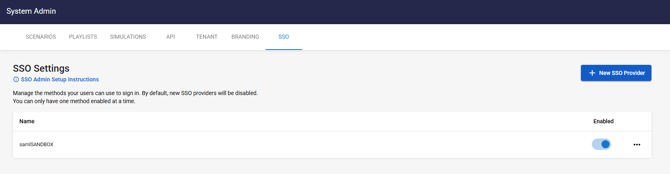
If your organization already has enabled SSO for your organization's usage of Call Simulator, you will see such listed under SSO Settings. In the following example, you can see the name of the SSO Provider, samlSANDBOX, and that this is currently enabled, as indicated by the blue toggle beneath Enabled.
New SSO Provider
From this SSO Settings page, you may also click on the New SSO Provider button to add another provider. NOTE: While you may add more than one SSO Provider for purposes of testing, your Call Simulator tenant may only have one enabled SSO Provider at any given time.
Clicking on New SSO Provider allows you to enter a Provider Name of your choosing, your organization's SAML Entity ID, your organization's SSO URL, and your organization's SAML Certificate.
For Redirect-based SSO, the SSO SAML Authentication Flow must be set to “Redirect SSO (Recommended).” Note that if an Import is attempted, the SSO SAML Authentication Flow may need to be set to Redirect SSO again to confirm:
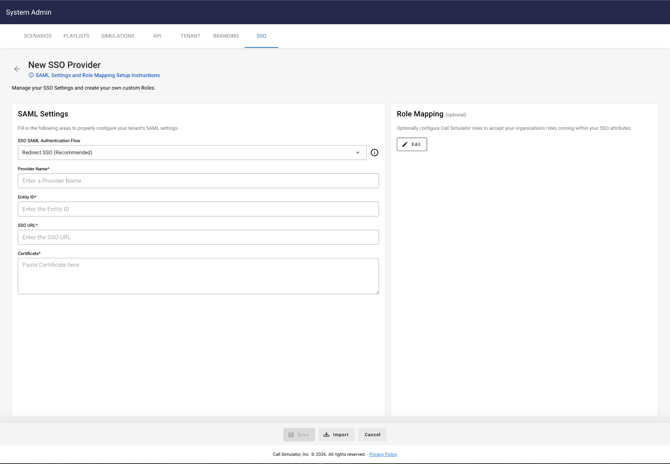
- SSO Provider Name will be auto-formatted to meet SAML requirements.
- SSO URL must be a valid URL format.
- Certificate must be in a Base64 format and must include the “-----BEGIN CERTIFICATE-----” header and “-----END CERTIFICATE-----” footer information with no added lines or line breaks. The following is an example of all fields populated, ready for Update:
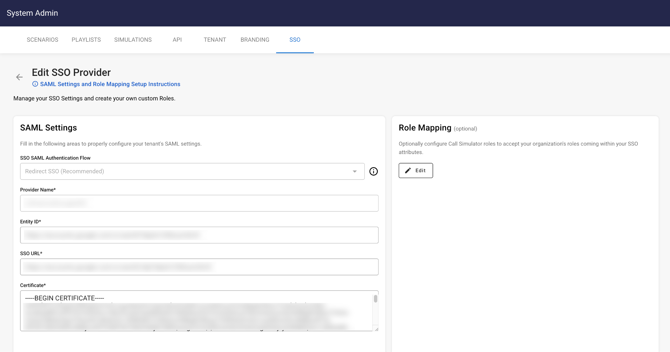
Alternatively, you may choose to import an SSO Provider, instead of typing in the fields, by using a SAML configuration XML file provided by your organization's IT team. Note that the certificate in the XML file must be in Base64 format - typically an option if not the default for exporting the SAML configuration file.
Option 2: Pop-up-based SSO
First, create a new app integration within your identity provider:
-
General Settings
-
Sign-in method: SAML 2.0
-
-
Authorization Callback / Assertion Service URL: https://newsci-911-front-end.firebaseapp.com/__/auth/handler
-
Audience URI (SP Entity ID): call-simulator
- tenant_id: The full tenant ID is displayed at the end of the URL for any Simulation result (tenant_id=YOURTENANTID-XXXXX). The tenant ID required for SAML attributes is your organization's Tenant ID plus the hyphen and the alpha-numeric 5 digits following the hyphen.
- displayName: string
- email: string
- firstName: string
- lastName: string
- roles: string array (Learner, Trainer, Builder, Manager, Admin, Super User)
Then, navigate to System Admin and click on the SSO tab.

If your organization already has enabled SSO for your organization's usage of Call Simulator, you will see such listed under SSO Settings. In the following example, you can see the name of the SSO Provider, samlSANDBOX, and that this is currently enabled, as indicated by the blue toggle beneath Enabled.

New SSO Provider
From this SSO Settings page, you may also click on the New SSO Provider button to add another provider. NOTE: While you may add more than one SSO Provider for purposes of testing, your Call Simulator tenant may only have one enabled SSO Provider at any given time.
Clicking on New SSO Provider allows you to enter a Provider Name of your choosing, your organization's SAML Entity ID, your organization's SSO URL, and your organization's SAML Certificate.
For Pop-up-based SSO, the SSO SAML Authentication Flow must be set to “Pop-up SSO.” Note that if an Import is attempted, the SSO SAML Authentication Flow may need to be set to Pop-up SSO again to confirm.
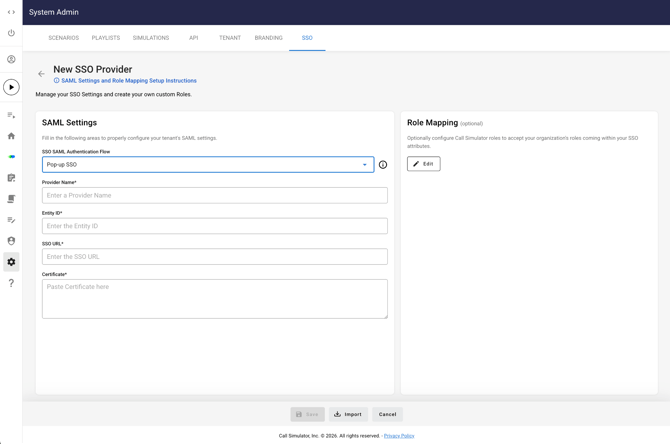
- SSO Provider Name will be auto-formatted to meet SAML requirements.
- SSO URL must be a valid URL format.
- Certificate must be in a Base64 format and must include the “-----BEGIN CERTIFICATE-----” header and “-----END CERTIFICATE-----” footer information with no added lines or line breaks. The following is an example of all fields populated:
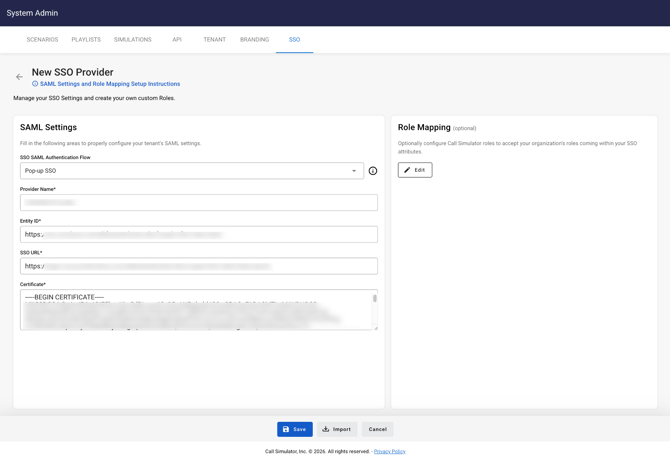
Alternatively, you may choose to import an SSO Provider, instead of typing in the fields, by using a SAML configuration XML file provided by your organization's IT team. Note that the certificate in the XML file must be in Base64 format - typically an option if not the default for exporting the SAML configuration file. Note that if an Import is attempted, the SSO SAML Authentication Flow may need to be set to Pop-up SSO again to confirm.
SSO Action Menu
Additionally, from this SSO Settings page, you may disable any SSO Provider currently enabled by clicking on the toggle locating below Enabled. Please take care to do so only after you have made any SSO Provider changes in coordination with your organization's IT team. Enabling an SSO Provider makes it live and immediately active for all single sign-on in the tenant.
From this SSO Settings page, you may also click on the three dots to the right of Enabled to access action items, including Edit, Test, and Delete.

- Edit. Selecting the Edit option will allow you to access Role Mapping for the currently enabled SSO Provider. You may also edit any of the SAML Settings fields. For further information regarding Edit options, please see the SAML Settings and Role Mapping article.
- Test. SSO Provider tests are non-destructive. This means testing an SSO Provider via the Test feature in SSO Admin will only show information to the Super User running the test, but will not update Call Simulator user account information or roles for the account used in the SSO authentication process. The information returned is read-only.
- SSO Provider tests will test information coming back from the your organization's identity platform and authentication process. This is completely independent of the Call Simulator account being used to access SSO Admin in the current session.
- Once an SSO Provider test is started, assuming the SSO Provider was set up correctly, your organization's authentication process is invoked. At that point, the person testing the SSO Provider can use ANY valid account for the authentication process - not limited to an account related to the current Call Simulator account. Most commonly, the account used in the authentication process will be for the same person. But, for example, if the Call Simulator Super User has multiple accounts on the organization's IdP, they may have the option to choose an identity to use on the authentication side. Whichever account is used and authenticated will be the account used for the SSO Provider test and so the test payload and SAML information returned will relate to that authentication process authenticated account.
- Delete. If there is an SSO Provider enabled and in active use, best practice is NOT to delete the SSO Provider, unless the intention is to disable all SSO access. If an SSO Provider is enabled and in active use, a more common use case - for example, replacing the IdP / IAM system and updating the configuration - would be to first create a new SSO Provider with the new settings so that it can be safely tested before enabling. Then, enabling the new SSO Provider, which will automatically disable the old SSO Provider, following confirmation.
Using SSO with Call Simulator for regular and deep link access
After configuration, users who want to leverage SSO for regular Call Simulator application usage should access Call Simulator by navigating to the URL for SSO access here:
-
https://app.callsimulator.com/?tenant_id=YOURTENANTID-XXXXX
The full tenant ID is displayed at the end of the URL for any Simulation result (tenant_id=YOURTENANTID-XXXXX). The tenant ID required the above URL is your organization's Tenant ID plus the hyphen and the alpha-numeric 5 digits following the hyphen.
Note that this link replaces the regular app.callsimulator.com access link for tenants and users configured for SSO.
Alternatively, for users who will be using Call Simulator deep links — e.g. Learners running simulations — those users can use the deep link(s) provided in Scenario Studio. Call Simulator deep links do not require SSO, though they do require authentication, and they do support SSO for tenants and users configured for SSO.
For additional information on SAML Settings and Role Mapping, please see that article herein.