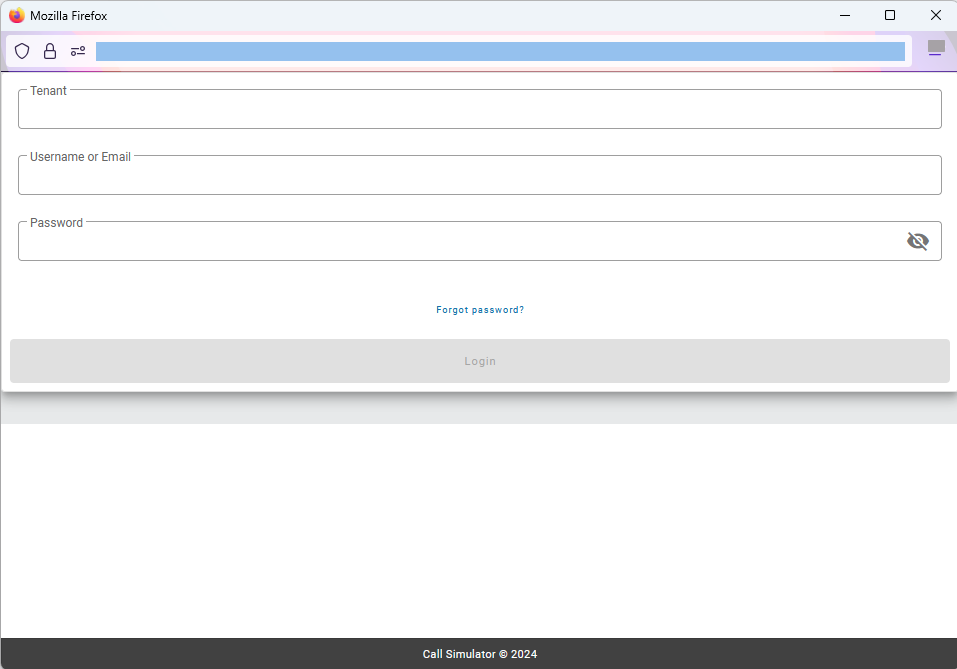
Simulations may be run via an embedded link or button in your organization's learning management system (LMS). In some cases, your organization may have made the decision to use Call Simulator's LMS Package capability in order to streamline your Simulation experience. If that is the case, once you have clicked on such link or button in your organization's LMS (such as, Canvas, Schoox, Cornerstone, etc.), a CallSim Player will render onscreen. If your organization is using Single Sign-On (SSO), you simply have to click on the simulation link and proceed accordingly. If not, you may be prompted to login if you are not already logged in, prior to starting your Simulation, as shown in the following image:
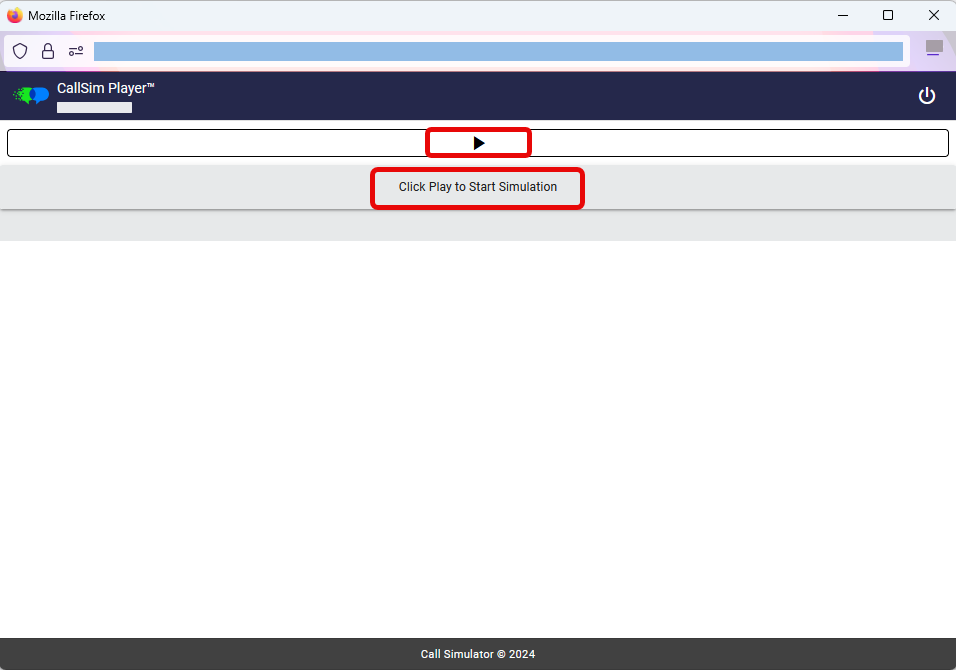
After entering your Tenant name, username, and password, and clicking on the Login button, you will then see the CallSim Player with instructions to click on Play to start your Simulation. NOTE: You will not see a queue. Rather, whichever Simulation has been assigned to you via your trainer or instructor through your organization's LMS and which you have clicked on from within your organization's LMS is ready and waiting for you to click on Play to begin that specific Simulation.
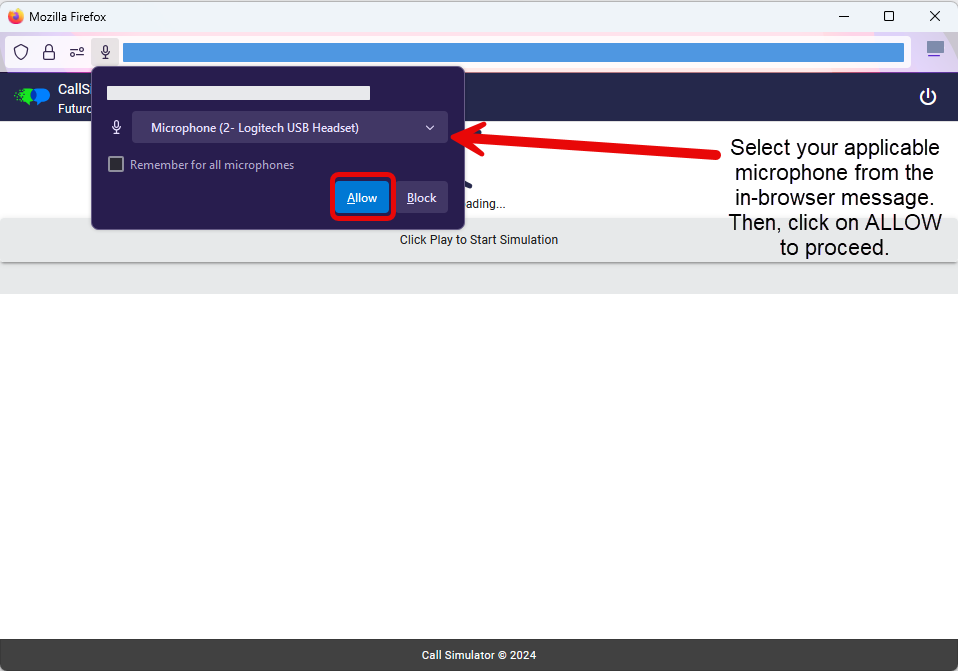
Next, you may see an in-browser message to allow access to your microphone. Please select your applicable microphone from the dropdown and click on allow. Should you have issues with your microphone configuration, please review this Knowledge Base article prior to contacting Call Simulator Support.
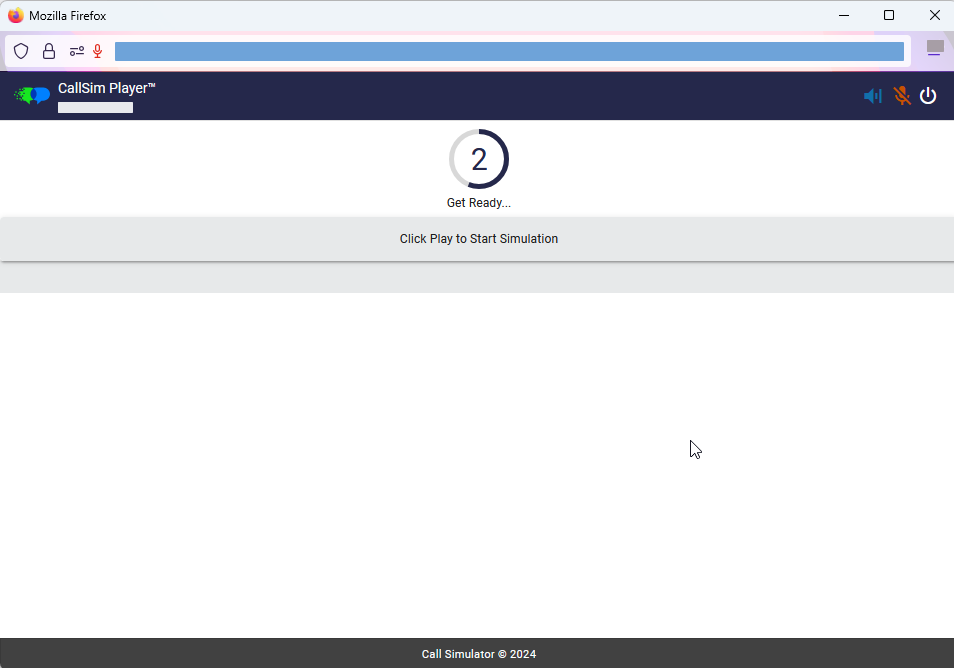
Once your microphone has been enabled, you will see a countdown clock, as shown below:
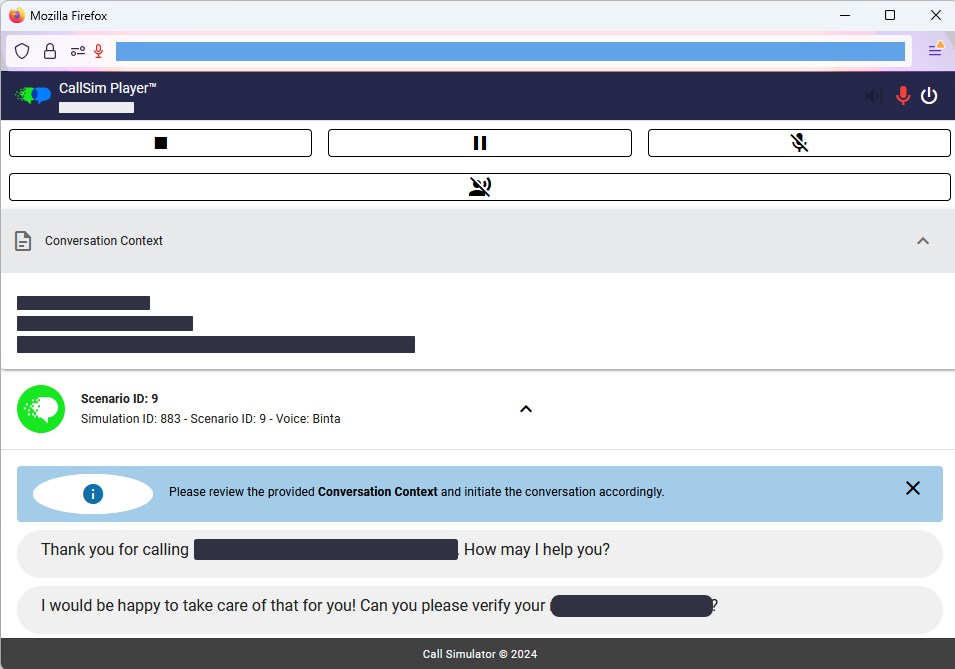
Then, your Simulator controls will appear and you may expand the Conversation Context section, if one has been provided for the Scenario you are simulating. Additionally, you may see the Learner side of the Conversation, if that option has been enabled by your organization. The Simulator controls include, from left to right:
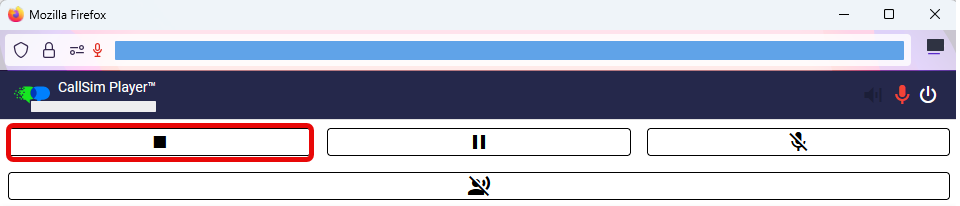
- End Simulation: represented by a square, clicking on this button will completely end your Simulation.
- Pause Simulation: adjacent to the End Simulation button, clicking on Pause Simulation will stop the Simulation from proceeding until you click on "Unpause Call" button to resume the Simulation.
- Mute Microphone: adjacent to the Pause Simulation button, this will mute your own microphone. The Call Simulator AI Persona will not respond to any utterance until you unmute your microphone.
- Activate Longform: This button appears beneath the previously mentioned controls. Activate Longform is an on/off feature where, when clicked (on), the microphone is agent-side only so the AI Persona will not speak until the longform button is clicked again (deactivate/off). When this button is activated, the AI Persona will not interrupt the Learner. Please be mindful when using this feature.
Once you have completed your Simulation, click on the End Simulation button:
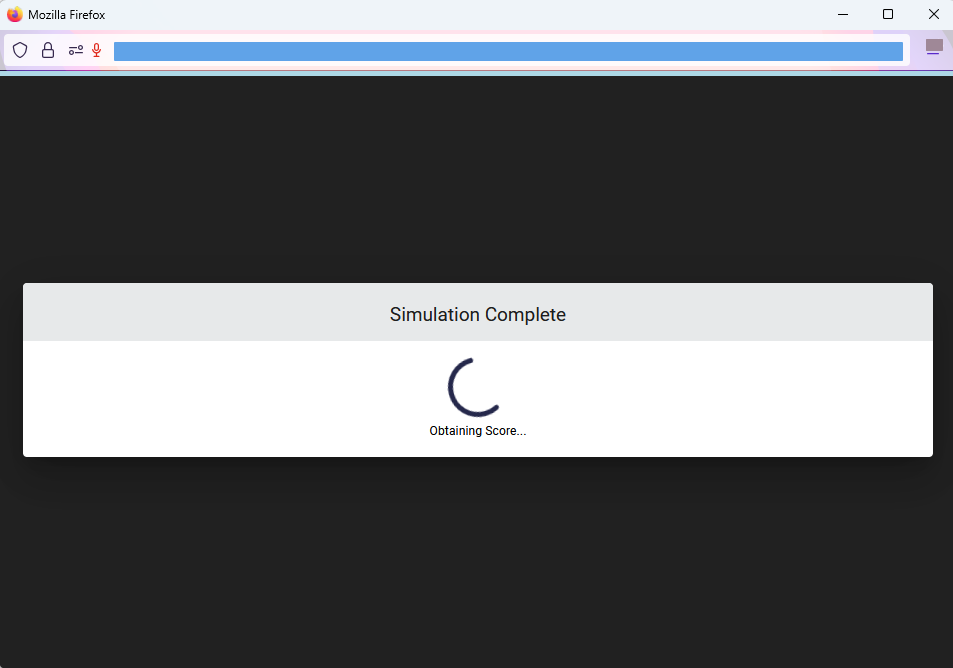
After clicking on End Simulation, an onscreen message will appear, indicating the Simulation score is being calculated. The score for the Simulation will be automatically sent to your organization's LMS. NOTE: Always be mindful of following the onscreen directions. You may see a message to NOT navigate away from your window while the score is being processed. You will then see a message directing you that it is now safe to navigate away.
Should you have issues, please do not hesitate to reach out to a Client Experience Associate via Support@CallSimulator.com or via the chat widget located in the bottom corner of this screen.