PLEASE NOTE: If you were invited to Call Simulator via your organization's learning management system, please follow the instructions provided to you by your trainer or instructor within your organization's course or module.
This article will assist you in running a simulation within the Call Simulator platform. You may also wish to view the Learner Role: Navigating Call Simulator, which demonstrates an actual simulation, both within the main Call Simulator application and the CallSim Player. NOTE: For the best experience during Simulation, use a USB/Wired headset with microphone. Do not use Bluetooth. See also System Requirements.
To begin a simulation, you must first have Scenarios or Playlists in your Queue. From the Home page, add a Playlist or Scenario to Queue from the Assignments panel. Alternatively, your organization may have provided a deeplink for you to run a simulation; in such case, simply click on the deeplink and click on Start Simulation - you will not need to add a Scenario or Playlist to your Queue, as a deeplink bypasses this process.
Clicking on Start simulation (the Play button) will activate the first scenario in the queue if one has been added. Content is pulled directly from the Queue. Scenarios or Playlists will begin in the order in which they appear in the Queue.
The following is an illustration of Starting a Simulation in the main Call Simulator app:

The following image is an illustration of Starting a Simulation in the CallSim Player widget. NOTE: The CallSim Player is rendered when a deeplink is clicked. The user may need to authenticate prior to clicking on Start simulation. This is typically how a user will run a simulation via a Learning Management System or Platform:

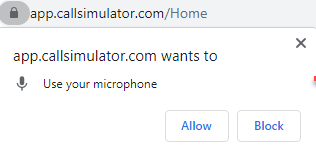
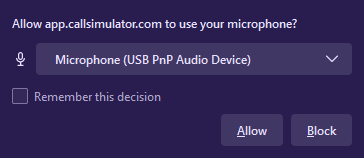
If this is the first time you have run a simulation, an in-browser popup will appear asking you to configure your microphone. Your chosen browser as well as your browser settings will determine what the popup looks like. To allow the simulation to start, you must allow the simulator to access your selected microphone. See also this article on testing your microphone and speaker settings.
The following are a few examples of how the pop up might appear (see also Configuring Your Microphone ):
Once your applicable microphone is selected, when the Start simulation (Play) button is clicked, your Scenario or Playlist will begin in the order in which they appear in the queue.
Next, a countdown timer will appear, providing you with 4 seconds to get ready for the simulation to begin.
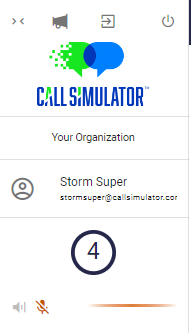
If an AI Coach introduction has been configured for the scenario you are simulating, you will first hear that introduction, as shown below:

Then, if the assignment being simulated is for a scenario which allows the Learner side of the conversation to show onscreen, you will see such. The following is an example:

For an outbound call simulation, you'll hear the AI Persona "answer the phone," by uttering a standard greeting, such as "Hello." You will then respond into your microphone accordingly to proceed with the conversation being simulated.
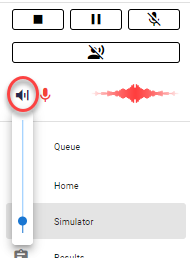
Additional simulation navigation buttons such as (1) end simulation, (2) pause simulation, (3) mute microphone, and (4) longform will become available once a simulation begins.

- Take care to only click on the End Simulation button once you have completed the entire conversation.
- The Pause button will pause the simulation. Nothing you utter will be recorded by Call Simulator while the pause button is active. Click on the pause button once more to deactivate pause and resume your simulation.
- The Mute Microphone button will mute your mic. Nothing you utter will be recorded, nor will the AI Persona respond to anything you utter. You must click on this button once more to unmute your mic.
- The Longform Button will turn green when you've clicked on it. Using the longform button will prevent the AI Persona from responding to anything you utter, until you click on the longform button to deactivate it. Please note: anything you speak into your microphone while the longform button is activated will be recorded by Call Simulator and the AI Persona will respond accordingly, once the longform button has been deactivated. This feature is helpful when you have an especially long utterance to state and you do not wish for the AI Persona to interject.
NOTE: Unless the "lock background audio" has been enabled for that scenario, you will have the option to change the volume of the background audio during simulation by clicking the speaker icon and using the blue slider bar that appears.
Once you have completed the simulation, you must click the square button to end the simulation as previously mentioned. If an AI Coach outro has been configured for the scenario being simulated, then you will hear the AI Coach outro after clicking on End Simulation.
Should you have issues running a simulation, please do not hesitate to reach out to a Client Experience Associate via Support@CallSimulator.com or via the chat widget located in the bottom corner of this screen.