
Users with the role of Trainer, Builder, Manager, or Super User may export simulation results by navigating to Results in the left-hand navigation menu and clicking on the Export button, located in the upper right-hand corner of the Results page as shown below:
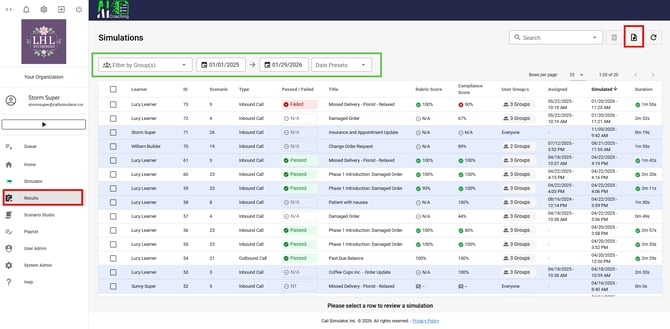
The Export file will contain all simulation results based on the Results filter settings at the time of clicking on the export button. You may adjust the Results filter by User Group, date range, and/or any available date preset. Additionally, you may filter Results by keyword by entering the desired keyword(s) in the Search box, located to the left of the the action buttons, in the top right-hand corner.
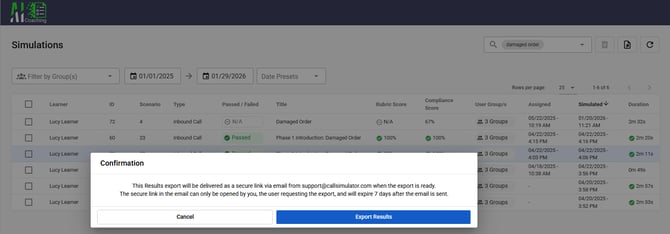
After clicking on the Export button, you will see the following confirmation dialogue box appear. Click on Export Results button to continue or Cancel to return to the Results page:
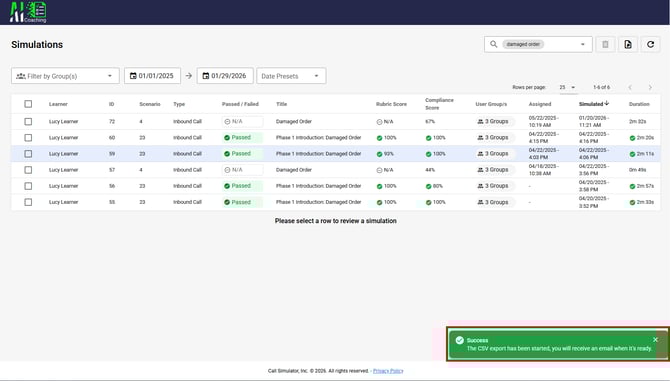
After clicking on Export Results, you will see a success message in the lower corner of your screen as illustrated below:
A secure, time-expiring link is then emailed to the email address associated with the user who requested the export following the above process. If the user clicks the link before it expires, the link requires the user to authenticate to validate that the user is the one who requested the export and that they still have correct authorization. Only then will the Results export be downloadable by the user.
For data and field descriptions, please access this downloadable Excel file.
Should you have any issues with your export file, please reach out to Support@CallSimulator.com. We are happy to assist!