To view a short walkthrough video created for users with the role of Learner, please visit Learner Role: Navigating Call Simulator. This walkthrough video may also be helpful to any user who wishes to see how Learners will experience Call Simulator as well as for any user who wishes to learn more about running simulations.
Getting Started
- Complete your registration by following the instructions provided to you in the registration email for Call Simulator. If you do not see an email for registration, please check your junk or spam folder for an email from Support@CallSimulator.com. You may wish to keep this registration email handy, as that email will contain your tenant name, which is required to login to the Call Simulator app. Additionally, it's possible your organization is using Single Sign On (SSO) for you to access Call Simulator. Please reach out to your training supervisor or instructor for further details.
- Confirm that you can log in to the platform. If you have any issues, please reach out to your training supervisor or your instructor before contacting Call Simulator Support.
- PLEASE NOTE: If you were invited to Call Simulator via your organization's learning management system or learning management platform, please follow the instructions provided to you by your trainer or instructor within your organization's course or module.
Navigation Menu
This section provides a walk through of the Call Simulator platform for those users provisioned with only the Learner Role. Additionally, this brief video will help you become more familiar with the Learner Role and the available menu options to those holding the Learner Role only.
After logging into Call Simulator, you will be presented with various menu options. The available main navigation menu options for those with the Learner Role only include Queue, Home, Simulator, Results, and Help.

These menu options are briefly described below:
- Queue - Lists your currently queued assigned content that is ready to be simulated in the order in which it appears in your Queue.
- Home - This is the landing page upon logging into Call Simulator. This page contains a Performance Summary, Assignments, and Available Content Library.
- Simulator - This page will provide the ability to see the Learner side of the conversation and conversation context, if those options have been included by the Builder of the Scenario, for the Scenario being simulated, after clicking on the Start Simulation button.
- Results - This page provides access to the results of each simulation you have attempted or completed as well as access to your simulation details, which may include coaching tips.
- Help - Clicking on Help will open another browser window/tab, giving you access to the Call Simulator Knowledge Base.
Running Simulations
PLEASE NOTE: If you were invited to Call Simulator via your organization's learning management system or learning management platform, please follow the instructions provided to you by your trainer or instructor within your organization's course or module.
This section will assist you in running a simulation within the Call Simulator platform. You may also wish to view this brief video, which illustrates running a simulation in both the main application (Call Simulator) and via the CallSim Player widget. NOTE: For the best experience during Simulation, use a USB/wired headset with microphone. Do not use Bluetooth. See also System Requirements.
To begin a simulation in the main Call Simulator app, you must first have Scenarios or Playlists in your Queue. From the Home page, add a Playlist or Scenario to Queue from the Assignments panel.

You may also self-assign any Available Content on the Home page, as shown below:

Clicking on the Start simulation will activate the first assignment the queue, if one has been added. Content is pulled directly from the Queue. Scenarios or Playlists will begin in the order in which they appear in the Queue.
NOTE: If your organization is using a learning management system or learning management platform, you will click on your simulation assignment within your lesson or course in your LMS. You will NOT see any assignments in the main Call Simulator app and you will not add any assignment to your queue.
Acknowledgement and Consent
When you first login to Call Simulator, you will be presented with the Acknowledgement and Consent dialog box. To no longer have this pop up message appear in the future, first check mark the Save acknowledgement for future simulations prior to clicking on the I Acknowledge button. To review the following Scribe How in a separate window, click on the arrow icon located just beneath the Get Started button. Alternatively, review this brief video.
Microphone Allowance
If this is the first time you have run a simulation, an in-browser popup will appear, asking you to configure or select your microphone. Your chosen browser as well as your browser settings will determine what the popup looks like. To allow the simulation to start, you must allow the simulator to access your selected microphone. It's a best practice to always test your speaker and microphone settings prior to beginning a simulation.
Once your microphone is selected, your simulation will begin in the order in which your assignments appear in the queue.
Simulation Begins
Next, a countdown timer will appear, providing you with 4 seconds to get ready for the simulation to begin.

If an AI Coach introduction has been configured for the scenario you are simulating, you will first hear that introduction, as shown below:

Then, if the assignment being simulated is for a scenario which allows the Learner side of the conversation to show onscreen, you will see such. The following is an example:

Additional simulation navigation buttons such as:
- End call,
- Pause call
- Mute microphone, and
- Longform button
will become available once a simulation begins, as shown and described below:
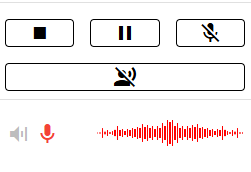
- Take care to only click on the End Simulation button once you have completed the entire conversation.
- The Pause button will pause the simulation. Nothing you utter will be recorded by Call Simulator while the pause button is active. Click on the pause button once more to deactivate pause and resume your simulation.
- The Mute Microphone button will mute your mic. Nothing you utter will be recorded, nor will the AI Persona respond to anything you utter. You must click on this button once more to unmute your mic.
- The Longform Button will turn green when you've clicked on it. Using the longform button will prevent the AI Persona from responding to anything you utter, until you click on the longform button to deactivate it. Please note: anything you speak into your microphone while the longform button is activated will be recorded by Call Simulator and the AI Persona will respond accordingly, once the longform button has been deactivated. This feature is helpful when you have an especially long utterance to state and you do not wish for the AI Persona to interject.
NOTE: Unless the "lock background audio" has been enabled for that scenario, you will have the option to change the volume of the background audio during simulation by clicking the speaker icon and using the blue slider bar that appears.
Once you have completed the simulation, you must click the square button to end the simulation as previously mentioned.
Navigating Results
As a Learner, you may navigate to Results in the main navigation menu to view your own simulation scores and details. Click on any Simulation Result to review details of your score and any coaching tips which may have been provided. You may listen to your own simulation or any specific part of your simulation within the transcript. Your instructor or trainer may also review your scores and results.


Contacting Support
Should you have any questions, please do not hesitate to reach out to us. You may do so either via email to Support@CallSimulator.com or via the chat widget, which you'll find in the lower corner of your screen within our Knowledge Base.