
This article will provide you with the necessary steps to reset your password in the event it has been forgotten or you feel it may have been compromised.
If you need to change the password for a different user and you have a role with applicable permissions, you may navigate to User Admin and expand the User Profile for whom a reset password link needs to be sent, and click on Reset Password.
To reset your password, you must first access the platform here.
Click the Forgot Password option on the login screen as illustrated in the image below.
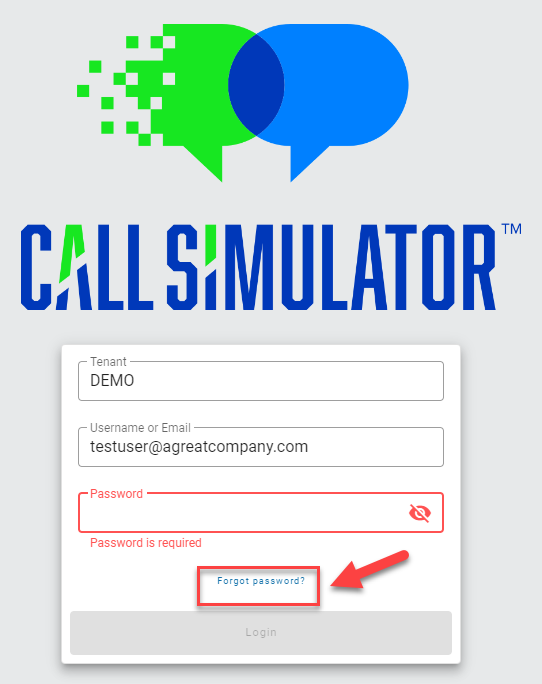
Please note, Call Simulator requires passwords to contain a minimum of 9 characters.
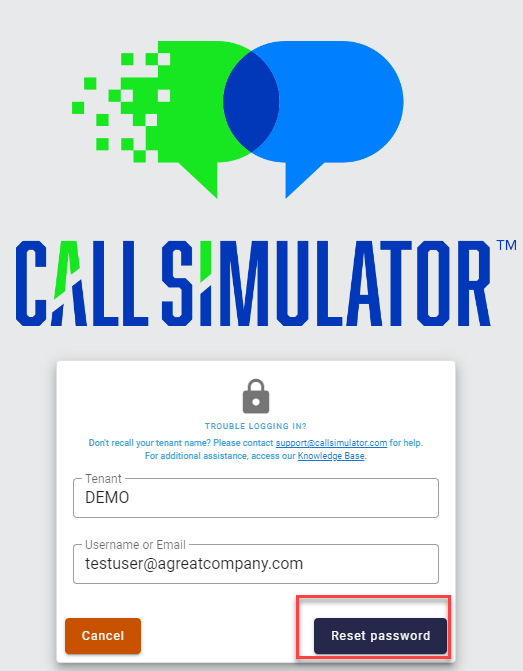
You will then be prompted to enter your Tenant and Username in the corresponding fields. Once entered, click on the Reset Password option. NOTE: If you do not know or do not recall your Tenant, please reach out to your training supervisor or contact a Client Experience Associate via the chat widget in the lower corner of this screen or send your request via email to Support@CallSimulator.com.

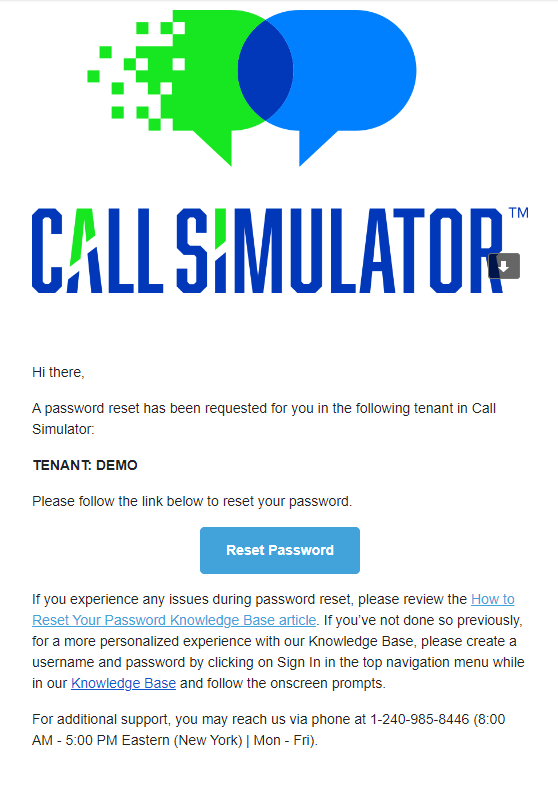
An email from Support@CallSimulator.com will be sent to you. Follow the email instructions to continue resetting your password by clicking on the link provided.
Click the Reset Password button in the email to return to the platform where you will input your new password.
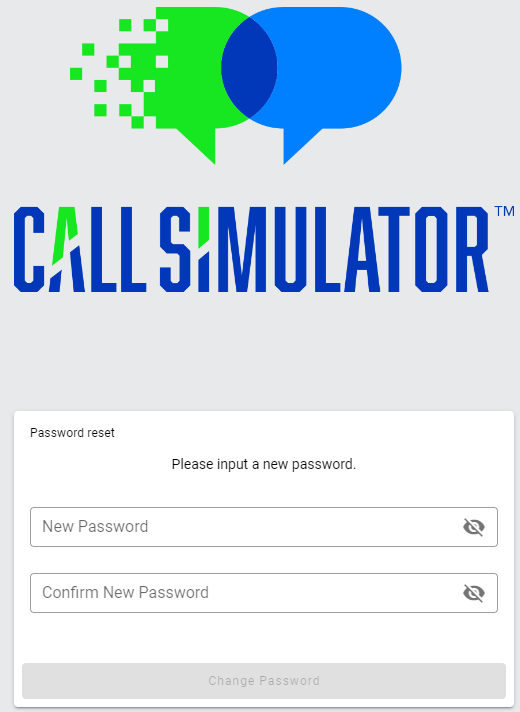
After providing the new password and clicking on the Change Password button, you will be redirected to sign in.

Should you continue to have issues with signing in, please do not hesitate to reach out to a Client Experience Associate, either via the chat widget in the bottom corner of this screen or through direct email to Support@CallSimulator.com.